Imagine you are right in the middle of typing an important project report or trying to join an urgent video call with your team. The mouse wheel spins endlessly, the screen freezes up, and your windows take ages to open. It is a deeply frustrating experience that can instantly ruin your productivity and raise your stress levels. We have all been there, staring blankly at a screen that refuses to move at the speed of our thoughts.
Many people assume that a sluggish computer means it is time to spend a fortune on a brand-new machine. However, the true culprit is rarely the hardware itself. Over months of daily use, systems naturally collect digital clutter, unnecessary background tasks, and unoptimized settings that quietly choke your performance. Your laptop isn’t necessarily old or broken; it is simply overwhelmed by software bloat.
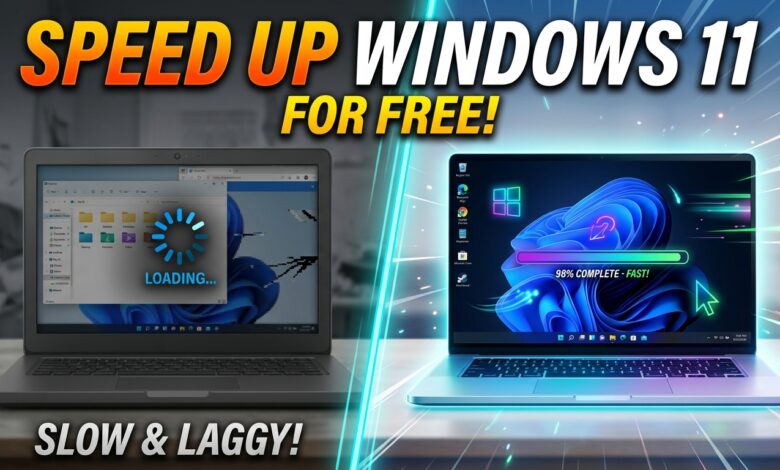
Thankfully, you do not need to spend a single dollar or be a technical genius to fix this issue. In this comprehensive guide, we will walk through exactly how to speed up a slow Windows 11 laptop for free. By adjusting a few hidden built-in settings and cleaning out hidden system traps, you can restore your machine’s original speed today.
Disable Startup Apps Tearing Down Your Boot Speed
Every single time you turn on your machine, a small army of downloaded applications tries to launch at the exact same moment. My coworker Sarah complained that her machine took over five minutes to become usable every single morning. When we checked her configuration, apps like Spotify, chat clients, and cloud update utilities were all fighting for system resources during the boot cycle. This heavy traffic jam leaves your computer feeling sluggish before you even open your first web browser tab.
To solve this issue, you need to access your built-in Task Manager tool. Press the keys Ctrl + Shift + Esc together on your physical keyboard to open the main system utility window. Click on the “Startup apps” tab located on the left side of the panel, which looks like a tiny speed meter icon. Here, you will find a complete list of every single program that has permission to launch automatically behind your back.
Carefully look through this list to spot programs you do not need to run immediately when your desktop loads. Right-click on items like game stores, music applications, or third-party updaters, and select “Disable” from the menu. This action does not delete the program from your drive; it simply stops it from opening until you manually click its icon. When you want to know how to speed up a slow Windows 11 laptop for free, clearing this boot path is always the best place to start.
Turn on Storage Sense to Clean System Junk Automatically
Your operating system constantly generates temporary data logs and cache files to help you browse the internet and run local programs. However, when these hidden folders accumulate over months of use, they turn into digital sludge that slows down your storage drive. My brother filled his drive with old installation files and temporary updates until his system started lagging during simple file transfers. If your main drive is nearly full, your laptop will struggle to process basic commands.
Windows 11 features a brilliant built-in tool named Storage Sense that acts like an automated digital cleaning service. To activate this helpful feature, open your Start menu, click on the Settings app, and select the System category followed by Storage. Toggle the switch next to “Storage Sense” to the On position to let your operating system manage your temporary files without any manual effort.
Click directly on the Storage Sense menu row to customize your specific cleanup rules. You can instruct the tool to empty your Recycle Bin automatically every fourteen days or wipe out temporary internet downloads that you haven’t opened in a month. By keeping your solid-state drive clean and airy, you ensure that Windows always has plenty of open blocks to read and write files at maximum speed.
Change Power Settings to High Performance Mode
Out of the retail box, almost all portable computers are pre-configured to a balanced or power-saving profile. This factory setting intentionally caps your processor’s top speed to squeeze a little bit of extra life out of your battery charge. My uncle bought a high-end laptop last year but complained it felt surprisingly slow when he tried to edit his weekend travel videos. The issue was simply that his machine was trapped in an aggressive battery-saving plan that limited his CPU cycles.
If you use your laptop plugged into a wall outlet at your desk most of the time, keeping it in a restricted power mode is holding you back. Adjusting these energy parameters is a highly effective trick when figuring out how to speed up a slow Windows 11 laptop for free. You can unlock your hardware’s true processing power by changing a single preference within your main control dashboard.
Open your system Settings app, choose the System tab, and click on the Power & Battery option. Look down the page for the drop-down box labeled “Power mode” and switch it from “Balanced” to “Best performance.” Your machine will immediately stop throttling its processor speed, providing a much crisper feel when opening heavy spreadsheets or jumping between dozens of browser windows.
Adjust Visual Effects for a Snappier Desktop Experience
Windows 11 looks gorgeous with its modern translucent windows, smooth fading animations, and soft drop shadows under icons. However, rendering all that visual eye candy requires continuous graphic processing juice from your internal chipsets. My friend Mark was using an entry-level laptop for his online business courses, and his screen would stutter every time he tried to minimize a window or open his application drawer.
Disabling these unnecessary superficial animations instantly frees up system memory and makes your desktop feel incredibly responsive. To change these settings, tap the Windows key on your keyboard, type “Advanced system settings” into the search box, and press Enter. Under the Advanced tab of the small pop-up window, click the Settings button inside the Performance section to view your options.
Switch the check circle from “Let Windows choose” to “Adjust for best performance” to turn off all heavy system animations instantly. If you prefer your screen text to remain sharp and easy to read, simply check the single box for “Smooth edges of screen fonts” before saving. Click Apply, and you will see your app windows snap open and shut instantly without any distracting visual delay.
Keep Windows 11 Updated to Patch Performance Bugs
Many users dislike system updates because they can take a few minutes to install and require you to restart your computer. However, ignoring these updates means your laptop is missing out on critical optimization fixes and code improvements. My neighbor intentionally paused his system updates for several months until a known background software glitch began causing his processor usage to spike to one hundred percent daily.
Microsoft engineers constantly push out minor updates specifically designed to resolve driver conflicts and enhance memory management. Learning how to speed up a slow Windows 11 laptop for free involves making sure your operating system is running the most refined code available. It costs nothing to check the official servers for the latest stability patches.
Open your main Settings panel, select the Windows Update option at the very bottom of the left sidebar, and click the “Check for updates” button. Allow your laptop to download and install any pending cumulative updates or hardware driver improvements. Once the process is complete, restart your machine to apply the changes cleanly, which often resolves mysterious background slowdowns right away.
Pro Tips for Maximum Laptop Performance
-
Remove Pre-installed Bloatware Apps: Computer manufacturers love loading new laptops with trial antivirus tools and unwanted games. My aunt’s laptop felt twice as fast after we opened the Apps menu and uninstalled three pre-loaded trial utilities she never used.
-
Use a Lightweight Web Browser: Some popular web browsers are notorious for consuming massive amounts of system memory. If you like keeping multiple tabs open while studying, try using browsers with built-in memory-saver features like Microsoft Edge or Brave.
-
Disable Transparency Effects Entirely: You can save extra graphics processing power by turning off see-through menus. Go to Settings, click Accessibility, select Visual Effects, and toggle off “Transparency effects” for an instant boost.
-
Keep Your Laptop Vents Clean: Accumulating dust inside your laptop’s cooling vents forces the fans to spin harder and traps internal heat. When a machine gets too warm, it intentionally slows down its speed to prevent hardware damage.
-
Clear Your Web Browser Cache Monthly: Web browsers save thousands of image files over time that can bog down your surfing speeds. Take ten seconds to clear your browsing history and cache files to make web pages load faster.
Frequently Asked Questions
When exploring how to speed up a slow Windows 11 laptop for free, many users worry about data safety and system settings. Here are clear answers to the most common questions.
Will turning off startup applications delete my personal files or software?
No, disabling startup apps will never delete your files or uninstall your programs. This setting simply tells Windows not to open those specific apps automatically when the computer first boots up. You can still open and use those programs normally whenever you want by double-clicking their desktop shortcuts.
Why is my brand-new Windows 11 laptop running slowly out of the box?
New laptops often run slowly at first because they are busy downloading initial setup updates and background indexing files in the background. Additionally, manufacturers frequently bundle resource-heavy trial software that runs automatically. Cleaning out these pre-installed programs will instantly unlock the true speed of your new hardware.
Is it safe to use third-party registry cleaners or speed-up software?
It is generally best to avoid third-party “PC booster” or registry cleaning tools. Many of these programs contain heavy advertising, run unnecessary background processes, and can accidentally delete important system files. The built-in optimization tools provided within Windows 11 are completely free, safe, and highly effective.
How much free space do I need on my drive for optimal performance?
You should aim to keep at least fifteen to twenty percent of your main C: drive completely free. Windows 11 uses this open space as temporary virtual memory when your physical RAM chips are fully loaded during heavy multitasking. If your drive is completely packed, your performance will drop sharply.
Can a hidden computer virus cause my laptop to run slowly?
Yes, malicious software can silently hijack your processor power to run background tasks like cryptocurrency mining or data scraping. If your device suddenly slows down for no apparent reason, run a full system scan using the built-in Windows Security tool to catch and remove threats for free.
Conclusion
A sluggish computer can easily turn daily tasks into stressful chores, but you do not need to spend money on upgrades to get your machine running beautifully again. By taking control of your startup programs, setting your power mode to maximum performance, and cleaning out digital junk, you can breathe new life into your current hardware. These simple adjustments remove the software roadblocks that cause lag and stuttering.
Maintaining great laptop performance is all about forming a few good digital habits. Taking just ten minutes every few months to check your storage space and install pending updates will keep system lag from creeping back into your workspace. Take action right now by discovering how to speed up a slow Windows 11 laptop for free on your own machine—open your Task Manager and disable three unneeded startup apps today!