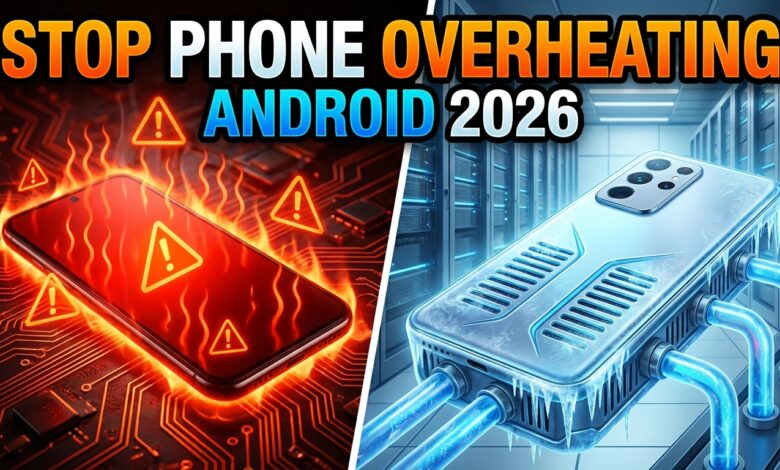
Imagine you are sitting outside on a beautiful sunny afternoon, recording a fun video at a family barbecue or playing your favorite graphic-intensive mobile game. Suddenly, your screen dims dramatically out of nowhere, your apps begin to stutter, and a terrifying warning message pops up: “Your device is too hot.” You touch the back of your smartphone, and it feels like a warm iron ready to melt right through your hands.
This unpleasant experience is becoming incredibly common as mobile devices pack more raw performance into ultra-thin bodies. Modern mobile processors handle massive workloads, high-refresh-rate displays, and blazing-fast charging speeds that naturally generate intense thermal energy. When your hardware cannot dissipate this heat fast enough, it protects itself by slowing down your performance, a frustrating process known as thermal throttling.
Fortunately, you do not have to accept a lagging, burning device as your daily reality. Learning how to stop Android phone from overheating in 2026 is all about understanding how your phone manages resources and adjusting a few hidden system configurations. In this comprehensive guide, we will break down the exact practical steps you need to take to keep your phone perfectly cool, preserve your long-term battery health, and enjoy seamless performance.
Tame the Background Apps Draining Your Processor
One of the primary reasons your device transforms into a mini radiator is an invisible army of heavy applications running quietly in your background memory. Even when your phone screen is completely turned off and sitting on a desk, apps like social media networks, cloud backup tools, and free casual games constantly refresh their data streams. If you have several of these unoptimized apps misbehaving simultaneously, your central processing unit (CPU) works constantly without ever entering its energy-saving rest state.
Think of your phone’s main processor like a compact car engine driving up a steep hill. If the car is only carrying you, the engine runs smoothly and stays cool; however, if you fill the trunk with heavy rocks, the engine will roar, struggle, and rapidly spike in temperature. An app that constantly tracks your location or syncs massive media files in the background acts just like those heavy rocks, forcing your hardware to run hot. If you want to know how to stop Android phone from overheating in 2026, your very first step must be a digital cleanup of these rogue background vampires.
To regain complete control of your system resources, you need to open your native Settings app and navigate directly into the “Apps” or “App battery usage” dashboard. Look carefully at the list to identify any apps consuming an unusually high percentage of energy despite minimal daily use. Tap on the offending application, select the battery settings option, and switch the permission layout from “Unrestricted” or “Optimized” over to “Restricted.” This single change completely freezes the app the moment you swipe it away, preventing unnecessary heat generation.
Optimize Charging Habits to Avoid Severe Thermal Build-Up
The physical act of charging your smartphone battery is inherently a thermal process governed by basic physics. When electrical current flows from a wall outlet into your phone’s lithium-ion battery cell, internal chemical resistance produces a natural baseline level of heat. With modern high-wattage fast chargers pushing immense amounts of power into devices in under thirty minutes, this heat generation can skyrocket to dangerous levels if you are not careful about your charging environment.
A classic mistake many smartphone owners make is plugging their device in while leaving it resting on top of a soft, insulating surface like a thick bedding comforter, a plush sofa cushion, or a fabric car seat. These soft materials behave exactly like an outdoor winter jacket, trapping all the radiating heat directly against the phone’s glass and metal body with zero airflow. If you add heavy gaming or video streaming into the mix while the device is actively fast-charging on a bed, you create a perfect thermal storm that degrades your battery health rapidly.
To fix this issue instantly, establish a firm rule to always charge your device on a hard, flat, cool surface such as a wooden desk, a kitchen countertop, or a sleek nightstand. Additionally, you should explore your device’s advanced battery settings to enable built-in thermal protection features like “Bypass Charging” if your specific phone model supports it. This intelligent feature routes electrical power directly from the charging cable straight to the processor components while bypassing the battery entirely during gaming sessions, cutting overall heat production in half.
Adjust Your Display and Refresh Rate Settings
The gorgeous high-resolution screen on the front of your device is actually one of the absolute largest consumers of raw electrical power in the entire hardware package. When you crank your manual brightness slider up to 100% to read text outside on a bright afternoon, your display panel draws a massive amount of current to fight against the sun. This continuous, heavy power draw creates a significant amount of heat right beneath the glass surface, directly warming up your internal components.
Furthermore, modern smartphones often feature incredibly smooth 120Hz or 144Hz high refresh rates that redraw the image on your screen over one hundred times every single second. While this looks incredibly fluid and premium when scrolling through articles, it places a massive processing burden on your graphics processing unit (GPU). If you keep your display locked onto its maximum refresh rate and peak brightness permanently, you are forcing your phone to work at its maximum performance threshold during basic tasks. Understanding these display dynamics is a critical pillar of learning how to stop Android phone from overheating in 2026.
You can quickly mitigate this issue by navigating to your main Settings app and selecting the “Display” or “Screen smoothness” options menu. Switch your display refresh rate setting from the locked high refresh rate down to the “Adaptive” or standard “60Hz” option to give your GPU a much-needed break. Pair this change with turning on “Adaptive Brightness” so your phone automatically drops its illumination level down to a gentle, cool setting the moment you step indoors into a darker environment.
Manage Your Connectivity and Turn Off Hunting Radios
Your smartphone is constantly talking to the outside world using an array of internal wireless antennas and high-speed radio modems. This includes your cellular 5G network chip, local Wi-Fi antennas, Bluetooth modules, and global positioning satellite (GPS) location hardware. When you are sitting at home with a rock-solid, stable connection to a nearby wireless router, these radios operate efficiently and generate almost no noticeable warmth.
However, the situation changes dramatically when you travel through a rural area, step into a deep concrete basement, or board a high-speed train where cellular coverage is spotty. When your phone drops down to a single bar of signal, its internal modem automatically turns up its broadcast power to its absolute maximum limit to search for a new tower connection. This constant, aggressive scanning or “network hunting” consumes a staggering amount of battery power and will cause the lower half of your device to heat up within minutes.
To solve this problem during long road trips or commutes through known dead zones, simply swipe down your quick settings panel and toggle on “Airplane Mode” for a few minutes. If you still require basic connectivity but want to avoid intense cellular heat, consider heading to your mobile network settings and changing your preferred network type from 5G down to LTE (4G). LTE networks are incredibly mature, highly stable, and use a fraction of the operating power, keeping your phone running much cooler in weak signal areas.
Use External Cooling Solutions and Safe Recovery Methods
If you are a dedicated mobile gamer who loves diving into massive multiplayer battle arenas or graphically rich open-world titles, software tweaks alone might not be enough to combat intense summer heatwaves. When a processor runs at full tilt for two or three hours continuously, passive cooling structures inside a standard phone chassis can reach their physical limit. In these demanding scenarios, leaning on specialized external hardware accessories is a brilliant way to protect your device from damage.
Modern semiconductor mobile cooling fans have become incredibly popular accessories because they offer active, rapid heat removal that text settings simply cannot match. These compact gadgets clip securely onto the back of your phone, utilizing a specialized thermal pad and a quiet internal fan to draw heat directly away from the chassis. If your phone begins to feel hot, the absolute fastest manual trick is to remove your thick protective silicone or leather case immediately. Thick cases act exactly like a thermal blanket, so stripping the case off lets the phone body breathe and cool down naturally.
Crucial Warning: If your phone becomes incredibly hot to the touch, never place it inside a household refrigerator or freezer to cool it down quickly. This rapid, extreme temperature shift creates immediate internal condensation and tiny water droplets inside the sealed body, which can permanently short-circuit your phone’s main logic board and completely destroy your device.
Pro Tips For Smooth Thermal Management
-
Ditch the Phone Case While Fast Charging: Always remove thick protective cases before plugging into a high-wattage fast charger. This simple habit allows your device’s back panel to dissipate rising temperatures freely into the ambient room air.
-
Keep Your Device Out of Hot Parked Cars: Never leave your smartphone sitting exposed on a vehicle dashboard or passenger seat on a warm day. The greenhouse effect inside a locked vehicle can easily drive temperatures past 120°F, which can permanently degrade your delicate lithium-ion battery.
-
Force Stop Broken Apps That Melt Your Battery: If your device gets warm out of nowhere while resting in your pocket, jump into your battery usage chart immediately. Hit the “Force Stop” button on whatever application is behaving erratically to kill the runaway process instantly.
-
Keep Your Android System Software Fully Updated: Device manufacturers constantly roll out crucial thermal optimization patches and system bug fixes in their monthly updates. Installing these updates promptly ensures your processor runs its software code as efficiently as possible.
-
Lower Your Game In-App Quality Settings Slightly: If a game causes severe stuttering and heat buildup, lower the in-game graphic preset from “Ultra” down to “Medium” and cap the frame rate. Your eyes will barely notice the minor visual difference, but your phone’s processor will run dramatically cooler.
Frequently Asked Questions
Is it normal for my Android phone to feel warm during daily use?
Yes, a gentle warmth is completely normal when you are performing moderately heavy tasks like watching high-definition videos, multi-tasking between large apps, or charging. Because smartphones do not contain loud internal cooling fans like desktop computers, they use their metal frames and glass backs to push heat away from the processor. As long as the phone doesn’t hurt to hold and isn’t displaying safety warnings, it is operating safely within normal parameters.
Can persistent overheating cause permanent damage to my smartphone?
Yes, chronic exposure to excessive heat is the single greatest enemy of modern smartphone components. High temperatures accelerate the internal degradation of lithium-ion batteries, permanently lowering their maximum capacity and shortening their lifespan. In extreme cases, severe, unmanaged heat can damage the delicate adhesive holding your display down or cause the internal processor chips to fail entirely.
Why does my phone get incredibly hot when I use GPS navigation in my car?
Using GPS navigation forces your phone to perform three incredibly power-hungry tasks at the exact same time. Your device must keep the display screen turned on continuously, run its location chip to ping overhead satellites, and download map assets via cellular data. If you place the phone directly on your vehicle’s windshield under blazing direct sunlight, the combination of hardware load and solar heat will quickly cause an overheat warning.
What should I do if my phone gets hot and the battery starts bloating?
If you notice the back of your phone is physically swelling, warping, or lifting away from the side frame, your battery cell has failed and is expanding with hazardous gas. You must immediately unplug the device from any charging cables, power it off completely, and move it away from flammable materials. Do not squeeze or press down on a bloated battery; instead, take it directly to a certified repair technician for safe disposal.
How does turning on Battery Saver mode help to stop Android phone from overheating in 2026?
When you toggle on your device’s built-in Battery Saver mode, the Android operating system places immediate, strict performance limits on your internal hardware. It intentionally reduces the peak clock speed of your CPU, disables non-essential visual animations, cuts off background location tracking, and stops background app synchronization. By lowering the overall electronic workload so dramatically, your device naturally stops drawing excess current and cools down very quickly.
Conclusion
Mastering how to stop Android phone from overheating in 2026 is a vital skill that protects your expensive technology investment and keeps your daily digital life moving smoothly. By making small, mindful changes to your daily habits—like managing heavy background apps, keeping your device out of direct sunlight, and charging on flat surfaces—you can easily keep thermal issues at bay. Your phone is an incredibly powerful tool, and with the proper care, it will continue to deliver lightning-fast performance without burning a hole in your hand.
Technology works best when it serves you reliably without any unexpected interruptions or scary safety warnings. The very next time your device begins to feel uncomfortably warm during a busy afternoon, don’t ignore it; simply pull up these expert tips to cool things down safely. Take complete charge of your smartphone’s health today by adjusting your background app permissions and display configurations, and enjoy a cool, fast, and smooth mobile experience all year round!