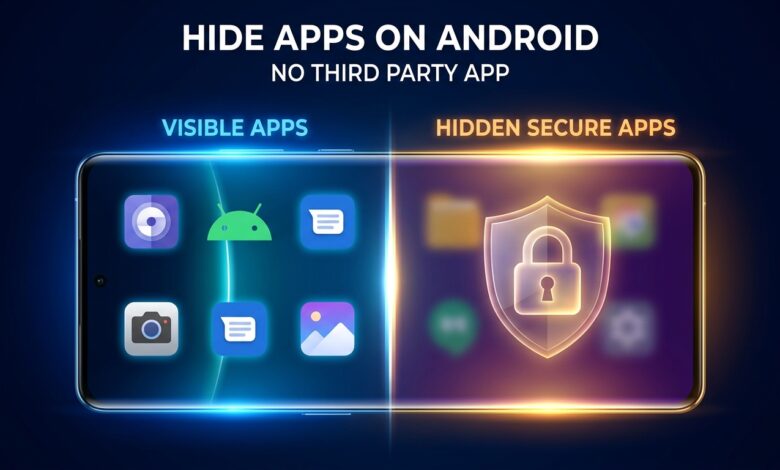
Imagine you are passing your phone to a friend to show them a funny photo from your recent vacation. Suddenly, your heart stops. You realize they might swipe too far or browse your app drawer, stumbling across your private banking apps, dating profiles, or personal work folders. We have all experienced that sudden spike of anxiety when someone else holds our unlocked mobile device.
You do not need to fill your phone with sketchy, ad-ridden privacy software from the Play Store just to keep your personal data safe. Many of those external utility apps drain your battery, spam you with notifications, and sometimes even compromise your data privacy. Learning how to hide apps on Android without any third party app is the ultimate solution to keeping your layouts clean and your sensitive information out of sight.
Modern smartphones come equipped with powerful, deeply integrated privacy settings designed specifically to mask your software footprints. Whether you use a sleek Google Pixel, a feature-packed Samsung Galaxy, or a blazing-fast OnePlus, your phone already has everything it needs built right into the operating system. Let us look at how you can activate these hidden systems to reclaim your peace of mind.
Native Settings: The Universal Android Method
Most major phone manufacturers build a direct concealment option straight into their default home screen launchers. This means you do not have to mess around with deep system code or alternative profiles just to clear an icon from your screen. For example, if you want to keep a shopping app hidden so your kids do not accidentally open it and buy a bunch of toys, this quick adjustment works wonders on a wide variety of devices.
If you want to know how to hide apps on Android without any third party app, the home screen launcher settings are your best starting point. This universal method works by masking the visual icon from both your main desktop pages and your primary application drawer. The software remains fully installed and functional, but it becomes completely invisible to anyone casually scrolling through your phone looking for a quick distraction.
To use this straightforward method, follow these quick steps on your device:
-
Long-press any empty space on your home screen until the layout menu pops up.
-
Tap on the Home Screen Settings or the small gear icon at the bottom right.
-
Scroll down until you find the option labeled Hide apps or Hide apps on Home and Apps screens.
-
Select the specific items you want to conceal from the list that appears on your screen.
-
Tap Done or Apply to save your changes and instantly clear your view.
Samsung Devices: Utilizing Secure Folder
Samsung handles personal data isolation incredibly well through its premium hardware-backed platform known as Secure Folder. Think of this feature as a literal digital safe nested deeply inside your mobile operating system. If you leave your phone on the kitchen counter and a family member picks it up, they will never be able to access whatever is locked inside this encrypted space, even if your main lock screen is completely open.
The beauty of the Secure Folder is that it creates a totally distinct, sandboxed copy of your selected software. If you move your mobile banking profile or a private messaging client into this folder, it operates with independent data storage, separate login credentials, and its own isolated file vault. It completely hides the application from your standard menus while protecting it with enterprise-grade defense systems.
Setting up this powerful environment takes less than two minutes:
-
Open your main Settings app and scroll down to select Security and privacy.
-
Tap on Secure Folder and sign in using your verified Samsung Account.
-
Choose your preferred authentication method, such as a unique PIN, a complex password, or your fingerprint.
-
Once inside the folder, tap the + (Add) icon at the top of the interface.
-
Choose the programs you want to safeguard, then tap Add to lock them away safely.
Google Pixel and Stock Android: The Private Space Feature
Google’s modern operating system updates brought a perfect tool for anyone searching for how to hide apps on Android without any third party app. Known officially as Private Space, this built-in feature sets up a sandboxed user profile that acts like a secret compartment at the very bottom of your application drawer. Imagine having a secondary digital workspace that completely vanishes from your device whenever you tap the lock button.
When Private Space is locked, the operating system goes out of its way to pretend those applications do not even exist. They will not show up in your recent apps history, they will not pop up in your global search results, and their notifications are completely blocked from view. This prevents awkward notification banners from appearing on your screen when you are showing a video to a coworker or friend.
You can set up this advanced stock Android feature by following these steps:
-
Navigate to your device Settings menu and select Security & privacy.
-
Scroll down through the privacy options and tap on Private space.
-
Authenticate with your primary screen lock, then tap the blue Set up button.
-
Create a completely unique PIN or password that is different from your main lock screen code.
-
Tap the + Install button inside the unlocked space to add or download your private applications.
OnePlus, Oppo, and Realme: Dial Pad Concealment
Devices utilizing custom software skins like OxygenOS, ColorOS, or Realme UI offer one of the cleverest hiding methods in the entire tech industry. Instead of just putting an icon in a hidden folder, these phones let you hide items behind a secret code that you type directly into your standard telephone dial pad app. It is an incredibly seamless system that keeps your private life hidden in plain sight.
For example, you could configure your phone so that typing
#7777#into your phone dialer instantly opens a hidden dashboard filled with your private financial tracking tools or personal social media accounts. To a casual observer or someone borrowing your phone to make a quick emergency call, your device looks completely normal, with absolutely no visual clues pointing to hidden folders.Here is how to set up this stealthy dial pad feature on your device:
-
Open your phone Settings menu and navigate directly to the Privacy section.
-
Tap on the option explicitly labeled Hide apps.
-
Toggle the switches next to the specific applications you want to remove from public view.
-
When prompted for the first time, click Settings to set up a unique access code.
-
Enter a code that starts and ends with a hashtag (like
#1234#), then hit the checkmark to finish.
Disabling Apps: The Ultimate Fallback Solution
Sometimes, the apps you want to hide are the stubborn, pre-installed bloatware programs that your cellular carrier forced onto your device before you bought it. These unwanted applications clutter your menus, eat up precious background RAM, and slow down your phone. When other features fail, discovering alternative tricks on how to hide apps on Android without any third party app can save the day.
While you cannot always completely uninstall factory system programs, Android allows you to safely disable them. Disabling an application cuts off its background processes, deletes its stored cache, and completely removes its visual icon from your entire device interface. It is the perfect way to clean up your workspace without messing with third-party software tools.
To disable system apps and clean up your layout, follow these steps:
-
Go to your phone Settings and tap directly on Apps or Apps & notifications.
-
Tap on See all apps to view the complete list of everything installed on your phone.
-
Locate and select the stubborn system application you want to clear from your screen.
-
Tap the Disable button located next to the force-stop option.
-
Confirm your choice when the warning message appears on your screen.
Brand Compatibility Reference
Because different manufacturers handle system settings in their own unique ways, it helps to understand what options are available for your specific device. The table below outlines exactly what native features you should look for depending on the brand of phone you carry in your pocket.
Smartphone Brand Primary Native Feature Access Location in Settings Samsung Secure Folder / Hide Apps Security & privacy / Home screen Google Pixel Private Space Security & privacy > Privacy OnePlus / Oppo Hide Apps (Dial Pad Code) Privacy > Hide apps Xiaomi / Redmi Hidden Apps / App Lock Apps > App lock Motorola Secure Folder / Moto Secure Moto Secure App / Security Pro Tips for Maximum App Privacy
-
Use a Unique Pin: Always set a completely different PIN or password for your hidden spaces than the one you use to unlock your phone’s main lock screen.
-
Turn Off Notifications: Remember to mute notifications for sensitive apps before hiding them, as incoming pop-up previews can easily give away hidden software.
-
Change the Folder Icon: If you use Samsung’s Secure Folder, change its name and icon to look like a generic tool, like a calculator or a system dictionary, to blend in perfectly.
-
Clear Search History: Regularly clear your device’s global launcher search history, because sometimes recently searched hidden apps can briefly show up there.
-
Set Up Guest Profiles: If you frequently share your phone with friends or kids, set up a dedicated system Guest Profile so they can never access your primary account.
Frequently Asked Questions
Can I still receive notifications from an app if it is hidden?
It depends entirely on the method you choose. If you use a simple home screen launcher concealment trick, your app will still run in the background and send notifications normally. If you utilize advanced sandboxing features like Android’s Private Space or Samsung’s Secure Folder, all incoming alerts are completely paused and blocked from public view until you manually unlock that specific private environment.
Will hiding an app delete my saved data or chat history?
No, hiding an application using native system settings will never delete your accounts, saved preferences, or message histories. Your phone simply hides the visual shortcut icon from your active workspace. The underlying data remains completely safe and untouched. The only exception is if you choose to fully disable a factory system app, which resets it back to its original base version.
How do I open and use an app after I have hidden it?
You can easily launch your hidden programs through a few simple native pathways. You can type the app’s name directly into your phone’s global search bar, look for it within the full list under Settings > Apps, type your custom security code into your telephone dialer pad, or simply pull up the secure vault folder located at the bottom of your app drawer.
Is it possible to hide pre-installed system apps using these methods?
Yes, you can absolutely hide pre-installed system apps. If your default home screen launcher settings do not let you hide a specific factory app, you can navigate to your phone’s main application settings menu and select the Disable option. This instantly stops the app from running and removes its icon from your interface completely.
Can someone still see my hidden apps if they plug my phone into a computer?
If you use basic home screen concealment, the files can still be browsed normally via a USB connection. However, if you store your private software inside advanced hardware-encrypted vaults like Samsung’s Secure Folder, the data remains fully locked down and completely inaccessible to external computers unless you actively unlock that specific folder on the phone.
Conclusion
Protecting your digital privacy does not mean bloating your phone with unwanted utility software; knowing how to hide apps on Android without any third party app gives you total control over what people see. By mastering the hidden features already resting inside your Samsung, Pixel, or OnePlus phone, you can easily hand your phone to friends, family, or coworkers without a single drop of sweat.
Take a quick look through your app drawer today and identify which applications hold your most personal data. Spend five minutes setting up a native secure space or a hidden home screen layout to keep your boundaries perfectly intact. If you found this quick mobile privacy guide helpful, feel free to share it with your friends and drop a comment below letting us know which native method works best on your personal phone!
-