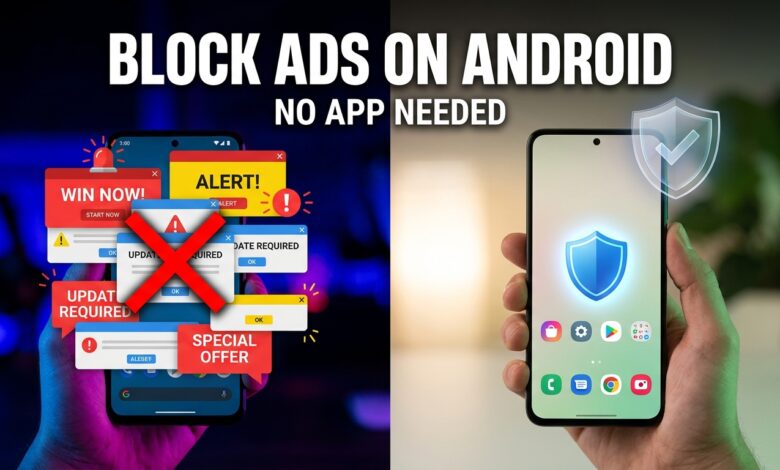
Think about the last time you were deeply invested in reading a fascinating article online or trying to check a live sports score while away from your computer. Just as you reach the most exciting sentence, a massive, flashing banner fills your screen, or worse, a video ad starts blasting audio at maximum volume in a quiet room. It is one of the most frustrating parts of modern mobile browsing, making your expensive smartphone feel clunky, chaotic, and slow.
Many people assume the only fix is to download heavy third-party ad-blocking utilities or paid security packages from the Google Play Store. However, installing extra software can eat up your precious internal storage, clutter your system memory, and drain your battery life rapidly in the background. The great news is that your device already possesses powerful, hidden tools designed to stop these interruptions at the root level without requiring a single installation.
If you want to clean up your digital workspace and reclaim your sanity, learning how to block ads on android phone without any app is the ultimate solution. By tweaking a few built-in toggles and utilizing secure, built-in system protocols, you can transform your device into a lightning-fast, clean machine. Let’s walk through the exact steps to completely silence those annoying marketing banners, pop-ups, and trackers using nothing but your native settings.
Change Your Private DNS Settings for System-Wide Relief
The most elegant and powerful way to eliminate mobile interruptions is to modify your network settings directly inside your operating system. Every single time your phone loads a website or a game, it uses a Domain Name System (DNS) to translate web addresses into machine-readable IP codes. By switching to a privacy-focused public host, your phone will automatically discard requests from known marketing networks before they ever reach your screen. This means you finally learn how to block ads on android phone without any app across both your favorite web browsers and your casual offline games.
Let’s look at a quick real-life example to see how this changes your daily routine. Imagine you are riding the subway home after a long workday, relaxing with a free brick-breaker or puzzle game that you downloaded to pass the time. Typically, every time you complete a level, the game pauses for a forced 30-second video clip that kills your focus and drains your monthly data cap. Once you point your device to an ad-filtering DNS provider, those specific ad slots will simply remain blank or load instantly as an empty box, allowing you to play entirely uninterrupted.
To set this up on your modern Android device, you do not need any technical background or special root access. You simply need to navigate through your connection settings menu to input a dedicated, free filtering hostname. Doing this ensures your web requests are scrubbed clean at a global level without a third-party app running in the background.
Tweak Google Chrome to Block Intrusive Web Ads
Even if you set up system-level filters, web browsers can occasionally reveal tricky scripts embedded deeply within web pages. Google Chrome is the default browser for millions of Android users, and it comes equipped with built-in defense mechanisms that are turned off or set to permissive levels out of the box. By manually diving into Chrome’s internal site permissions, you can stop malicious redirects and unwanted scripts from ruining your reading experience.
For instance, think about a scenario where you are searching for a quick weeknight dinner recipe while standing in a busy grocery aisle. You click on a promising link, but instead of showing you the ingredients list, the page suddenly violently shifts up and down, opens a brand new tab selling a lottery scam, and flashes a warning that your phone is infected. Knowing how to block ads on android phone without any app inside your browser stops these aggressive site scripts from overriding your active tab, keeping your browsing smooth and predictable.
To activate these browser defenses, launch Google Chrome on your device and tap the three vertical dots located in the upper right-hand corner. From the dropdown menu, select Settings, scroll down to the Advanced section, and tap on Site Settings. Inside this menu, look for two specific options: “Pop-ups and redirects” and “Intrusive ads.” Ensure both toggles are set to blocked, which instantly stops malicious webmasters from hijacking your mobile screen when you click an innocent link.
Revoke Home Screen Overlay Rights for Strange Apps
Have you ever been right in the middle of typing an important text message to a coworker or family member, only for a full-screen video advertisement to launch out of nowhere over your home screen? This highly disruptive issue is usually caused by a rogue utility app running in the background of your operating system. Android includes a powerful permission feature called “Display over other apps” that sketchy apps abuse to overlay marketing content directly over your user interface.
Let’s consider a real-life example of how this happens to everyday users. You might have downloaded a basic tool, such as a free flashlight utility, a generic file converter, or an old ringtone manager, months ago. While the app seems harmless when you use it, the developers update it in the background to continuously run silent scripts that throw promotional popups onto your screen when you least expect it. Identifying and revoking this specific permission stops this invasive behavior cold without deleting anything.
To fix this hidden issue, open your main device Settings and look for the Apps or Application Manager section. Tap on the special access settings menu (usually found by clicking the three dots in the top corner) and select “Display over other apps.” Carefully review the list of software that has permission to use this feature; if you spot a casual game or an old utility tool that has no business drawing over your phone, slide the toggle to disabled to instantly protect your interface.
Reset and Delete Your Mobile Advertising Identifier
Have you ever noticed how your smartphone seems to read your mind, showing you promotions for things you only talked about or looked up briefly? This happens because your phone maintains a unique digital tracking file called an Advertising ID that builds a comprehensive profile of your shopping habits. This ID records the apps you use, how long you stay on specific pages, and your precise interests so that companies can target you with relentless marketing campaigns.
For example, let’s say you casually look up a durable pair of waterproof leather boots because you plan to go camping next weekend. For the next two weeks, every single news blog, casual mobile game, and social media timeline you scroll through will bombard you with identical boot sales pitches. This endless cycle happens because ad networks are matching your browsing data directly to your unique device profile.
You can easily sever this connection and understand how to block ads on android phone without any app by erasing this tracking profile entirely from your system settings. Head into your main device Settings, select the Google menu, and tap on the Ads section under the services tab. Here, you will find options to clear your current profile data; tap on “Reset advertising ID” to wipe your history clean, and then tap “Delete advertising ID” to prevent apps from building a targeted tracking profile on you ever again.
Clean Up Push Notification Spam in System Permissions
Another major source of modern mobile clutter comes directly from your phone’s notification shade at the top of your screen. Some websites use trick prompts to convince you to click “Allow” on notification boxes under the guise of verifying that you are not a robot or giving you access to an article. Once you accidentally click yes, these sites gain permission to send clickbait articles and scam warnings directly to your phone’s lock screen all day long.
Imagine waking up early in the morning and picking up your phone to check for a critical message from your boss or an email from your bank. Instead of a clean lock screen, you are greeted by five loud, flashing alert badges shouting about fake crypto deals or sketchy software updates from a web portal you briefly clicked on weeks ago. This is not a virus; it is simply a website exploiting your browser’s push system to deliver ad inventory directly to your notification bar.
To fix this and master how to block ads on android phone without any app, you can easily clean up your notification panel. The fastest way is to wait until an annoying notification appears, press and hold your finger directly on it, and tap the gear icon that appears to instantly block all future alerts from that specific domain. Alternatively, you can go to Settings, tap on Notifications, select App Notifications, open Chrome, and untick any unfamiliar or suspicious websites listed under the allowed sites section.
Pro Tips for Maintaining an Ad-Free Android Device
-
Leverage the Power of Lite Apps: Switch to official progressive web apps or “Lite” versions of popular social media platforms, which naturally display significantly fewer auto-playing video banners and use a fraction of your mobile data.
-
Keep an Eye on Data Usage: If you notice sudden battery drain or unexpected data spikes, check your system settings to see which apps are running heavily in the background; rogue ad-serving utilities often stick out due to unusually high background resource consumption.
-
Support Local Creators Wisely: Remember that many independent bloggers and journalists rely entirely on advertising revenue to keep their content free; you can easily toggle off your custom Private DNS temporarily to support your favorite community creators when browsing their sites.
-
Clear Your Browser Cache Regularly: Ad networks store small pieces of tracking data called cookies in your browser cache; cleaning out your storage once a month breaks down hidden tracking cookies and refreshes your phone’s browsing speed.
-
Be Cautious with Public Wi-Fi Portals: Some public networks, like those found at local coffee shops or airports, inject custom promotional banners into your web traffic; keeping your native Private DNS active provides an extra layer of structural encryption against these localized network injectors.
Frequently Asked Questions (FAQ)
1. Does learning how to block ads on android phone without any app affect my battery life?
No, it actually does the exact opposite by significantly improving your device’s overall battery life and performance. When your phone uses native configurations like a Private DNS, it prevents heavy tracking scripts and media files from downloading in the background. Think of it like taking heavy cargo out of the trunk of your car; because your phone’s processor doesn’t have to spend energy rendering flash elements or auto-playing videos, it runs cooler and preserves battery power.
2. Will changing my Private DNS settings break my mobile banking or streaming apps?
For the vast majority of everyday applications, secure banking, shopping, and streaming apps will function perfectly without any issues. Financial institutions use independent security protocols that do not rely on public ad networks to verify your identity. For example, when you log into your local bank app to pay a bill, the app communicates directly with the bank’s secure server, meaning an ad-blocking DNS will simply ignore marketing trackers while leaving your critical financial data completely untouched.
3. Why am I still seeing ads on YouTube after modifying my phone settings?
YouTube serves its video commercials from the exact same internal servers that deliver the actual content videos you want to watch. Because the advertisement and the video share the identical web address domain, network-level filters like a Private DNS cannot distinguish between the two without breaking the entire video stream. To bypass these specific video interruptions without installing extra apps, you can use a privacy-conscious browser like Brave or open YouTube within a mobile browser tab equipped with native desktop site toggles.
4. Is it completely safe to use public hostnames like AdGuard or Control D?
Yes, using established, reputable public DNS hosts is incredibly safe and highly recommended by modern cybersecurity experts. These companies run massive global networks that are strictly regulated and designed to protect consumer privacy by encrypting your data lookups. It is similar to using a secure postal service that automatically screens out junk flyers before they arrive at your physical mailbox, keeping your daily online traffic safer from phishing attempts.
5. Can I easily revert these settings back to original if I change my mind?
Absolutely, every single native change you make to your Android operating system is completely reversible with just a couple of taps. If you find that a specific work-related website requires ads to display correctly, you can jump straight back into your connection settings and turn the Private DNS back to Automatic. Your phone will instantly return to its out-of-the-box behavior, giving you absolute control over your device’s configuration.
Conclusion
Taking control of your mobile device does not require you to fill your storage space with sketchy tools or complex software downloads. By mastering how to block ads on android phone without any app, you are utilizing the clean, native framework built directly into your operating system to build a safer digital experience. Think of how pleasant it feels to open your phone to show a boarding pass at an airport or pull up a reference note at a store without a chaotic popup throwing your screen into layout confusion.
Your smartphone is a high-performance computer that should work specifically for you, not for distant marketing companies looking to exploit your data and battery life. Implementing these simple native adjustments will immediately make your browsing feel smoother, drop your monthly data consumption, and give you peace of mind. Take five minutes out of your day today to tweak these options and enjoy the fast, peaceful mobile experience you deserve.
Did this guide help you clean up your mobile experience? Drop a comment below to let us know which native method worked best for your specific Android model, and make sure to share this article with a friend who is tired of dealing with constant mobile screen clutter!